
You can fix most spektrum ix12 problems by performing a factory reset or updating the Android firmware to the latest version. These radios run a modified version of Android, which means they’re prone to standard tablet glitches like app crashes, slow touch response, or connection delays. If your unit freezes, the first step is always to verify that your AirWare software is fully updated to the latest build provided by the manufacturer.
Causes of Spektrum iX12 performance problems
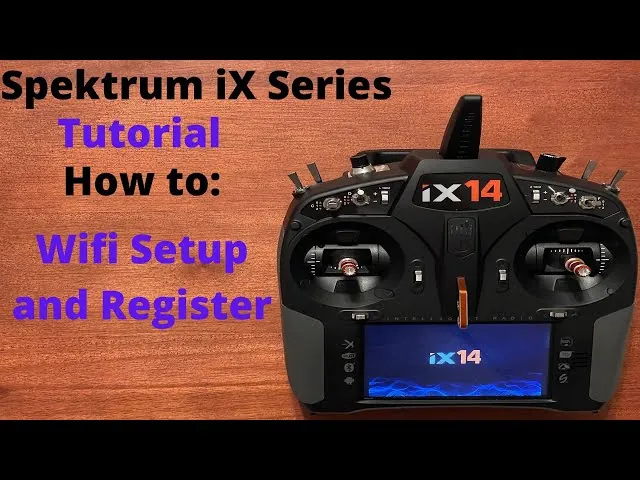
The primary cause of issues with this radio is the interaction between the underlying Android operating system and the specialized AirWare software. Because the device relies on a touch-based interface, background processes or cache buildup can lead to sluggish performance. If you have too many models saved in the internal memory, the system may struggle to load the interface quickly, resulting in the appearance of a system hang.
Another frequent cause involves battery management and power cycles. The radio uses a high-capacity lithium-ion battery, and if the voltage drops too low during a firmware update, the file system can become corrupted. This often leads to the radio failing to boot or getting stuck on the startup logo. Always ensure your device has at least 50% charge before attempting any system-level changes.
Finally, connectivity issues between the radio and your receiver often stem from outdated RF firmware. The ix12 uses a dual-antenna system that requires precise timing to maintain a link. If the firmware on your receiver doesn’t match the protocol version on your transmitter, you’ll experience signal drops. You can verify your current firmware status and download the latest updates through the Spektrum official support portal.
Perform a full system update
If your radio feels slow or the screen is unresponsive, updating the software is the most effective fix. This process clears temporary files and optimizes how the processor handles your model files. Before you start, connect your radio to a stable Wi-Fi network and ensure it’s plugged into a wall charger.
To update, open the AirWare app and navigate to the System Settings menu. Select the “Update” tab and check for any available downloads. If an update is found, let it install completely without turning off the radio. Once finished, restart the unit to allow the files to initialize. If the app still lags after the update, go to the Android settings menu, find the AirWare app, and clear the cache. This removes old temporary data that might be causing conflicts.
Note that clearing the cache won’t delete your saved models, but it will reset your current app preferences. If the screen remains unresponsive even after a cache clear, you likely have a hardware defect. In such cases, contact the manufacturer directly, as opening the case yourself will void your warranty and could lead to permanent damage to the delicate internal ribbon cables.
Reset the device to factory settings
If you face recurring crashes or the radio refuses to bind to receivers, a factory reset is the best path forward. This wipes the Android partition clean and returns the software to its original state. Before doing this, you must export all your model files to an SD card. Failure to back up your models will result in the permanent loss of all your custom settings and configurations.
To begin the reset, turn off the radio. Hold down the power button and the back button simultaneously until the Android recovery menu appears on the screen. Use the volume buttons to scroll down to “Wipe data/factory reset” and press the power button to select it. Confirm your choice when prompted. Once the process completes, select “Reboot system now.”
After the radio restarts, you’ll need to re-enter your Wi-Fi credentials and re-import your model files from your SD card. This process is intended for software issues only; if your radio is physically damaged or the screen is cracked, a reset won’t resolve the problem. If you encounter a boot loop after a reset, the internal storage chip might be failing. This is a hardware issue that requires professional repair by a certified technician rather than a home fix.
Resolve signal and binding failures
Signal loss is a serious issue that requires a methodical approach to confirm whether the problem is the transmitter or the receiver. First, check your antenna orientation. The ix12 uses an internal antenna and an external articulating antenna; ensure the external one is straight and not loose at the base. If the signal strength (RSSI) drops rapidly at short ranges, move your receiver away from carbon fiber frames or large metal objects, as these block the 2.4GHz signal.
If the radio refuses to bind to a receiver, ensure you’re using the correct DSMX or DSM2 protocol setting in the model menu. Some older receivers require you to select a specific frame rate, such as 11ms or 22ms. If you’re using a remote receiver, ensure the connection cable isn’t pinched or frayed. If you have confirmed the protocol and the cable is intact but the bind still fails, try binding the receiver to a different transmitter.
If it binds to the other radio, the issue is likely with your ix12 RF module. In this scenario, don’t attempt to solder or modify the internal RF board yourself. Radio transmission equipment is subject to strict regulatory standards; unauthorized modifications can make the device illegal to operate or dangerous to use near other pilots. Reach out to the manufacturer for a professional service evaluation.
Common mistakes to avoid
- Don’t force a firmware update if the battery level is below 50%, as a power failure during this process can brick the internal storage.
- Avoid installing third-party Android apps from the web, as these can consume background memory and cause the AirWare software to become unstable.
- Don’t leave the radio in a hot car, because extreme temperatures can cause the touch screen to become unresponsive or permanently drift in calibration.
- Avoid using low-quality SD cards for model storage, as slow read speeds can lead to “Model Corrupt” errors when you try to load your files.
- Don’t attempt to open the radio casing to fix internal components, as this risks damaging the delicate antenna wires and voids your warranty.
Maintaining your radio’s performance
| If you’re doing this | Do this instead | Why |
|---|---|---|
| Leaving it in a hot car | Store in a cool, dry case | Heat ruins the LCD and battery |
| Using a random USB cable | Use a high-quality data cable | Poor cables cause update errors |
| Keeping all models in memory | Export unused models to SD | Reduces load times and lag |
| Ignoring low battery warnings | Charge as soon as possible | Prevents corrupted system files |
If your screen shows dark blotches, the heat has already breached the casing.
Longer, unshielded wires introduce signal noise that interrupts the data handshake, often bricking the internal bootloader.
If your startup screen hangs for more than five seconds, your memory is likely cluttered with legacy model files. Move every file you haven’t flown in the last month to an SD card. This keeps the active directory lean and prevents the processor from stalling during flight initialization.
Never let the battery voltage drop too low before recharging. Running the battery to zero causes the system to shut down abruptly, which can corrupt configuration files.
Related guides
Frequently asked questions
Can I replace the battery myself?
You can replace the battery yourself by opening the back cover and disconnecting the plug. The battery is a standard user-replaceable part, but you must use the official replacement unit provided by the manufacturer. Note that using an aftermarket battery may lead to overheating or fire risks.
How long does the battery last?
The battery typically lasts between 3 to 5 hours of continuous use, depending on screen brightness and Wi-Fi usage. If you notice the battery life dropping below 2 hours, it’s likely reaching the end of its cycle life. You should replace it to prevent unexpected power loss.
Is it safe to use a phone charger?
No, you shouldn’t use a standard phone charger because the output may not match the radio’s requirements. Always use the charger provided with the device or a high-quality USB power source that meets the manual’s specifications. Using the wrong charger can damage the internal charging circuit.
Why is the screen lagging?
Screen lag is usually caused by too many background processes or a full system cache. Close any apps running in the background and clear the system cache through the settings menu. If the lag persists, delete old, unused models to free up memory and improve performance.
How do I fix a boot loop?
A boot loop is usually triggered by corrupted firmware and is best resolved by performing a hard factory reset. Follow the steps to enter the recovery menu and wipe the data partition to rebuild core files. If the device continues to cycle, the internal storage may be physically damaged.
What happens if I drop the radio?
Dropping the radio can cause internal antenna wires to disconnect or the touch screen to crack, affecting performance. Perform a range test with a receiver before flying any model after an impact. If the range is significantly reduced, the internal hardware has likely been damaged and requires professional service.
Conclusion
If these fixes don’t improve your experience, it’s a good idea to reach out to Horizon Hobby’s support team directly. They’re usually quick to help with persistent hardware issues. Don’t let a glitch keep you grounded; getting your radio back in top shape will ensure you’re ready for your next flight.