
When your interactive fitness display stops responding or fails to connect to your home network, performing a lululemon mirror troubleshooting routine is the most efficient way to restore your workout routine. Because these systems rely on a stable internet connection and a clean operating system, most common errors—such as frozen screens, audio sync issues, or login failures—can be resolved through a series of systematic resets. Whether you’re dealing with a blank screen or a persistent software glitch, identifying the root cause is essential for getting back to your yoga, strength, or cardio sessions without further delay.
Key Takeaways
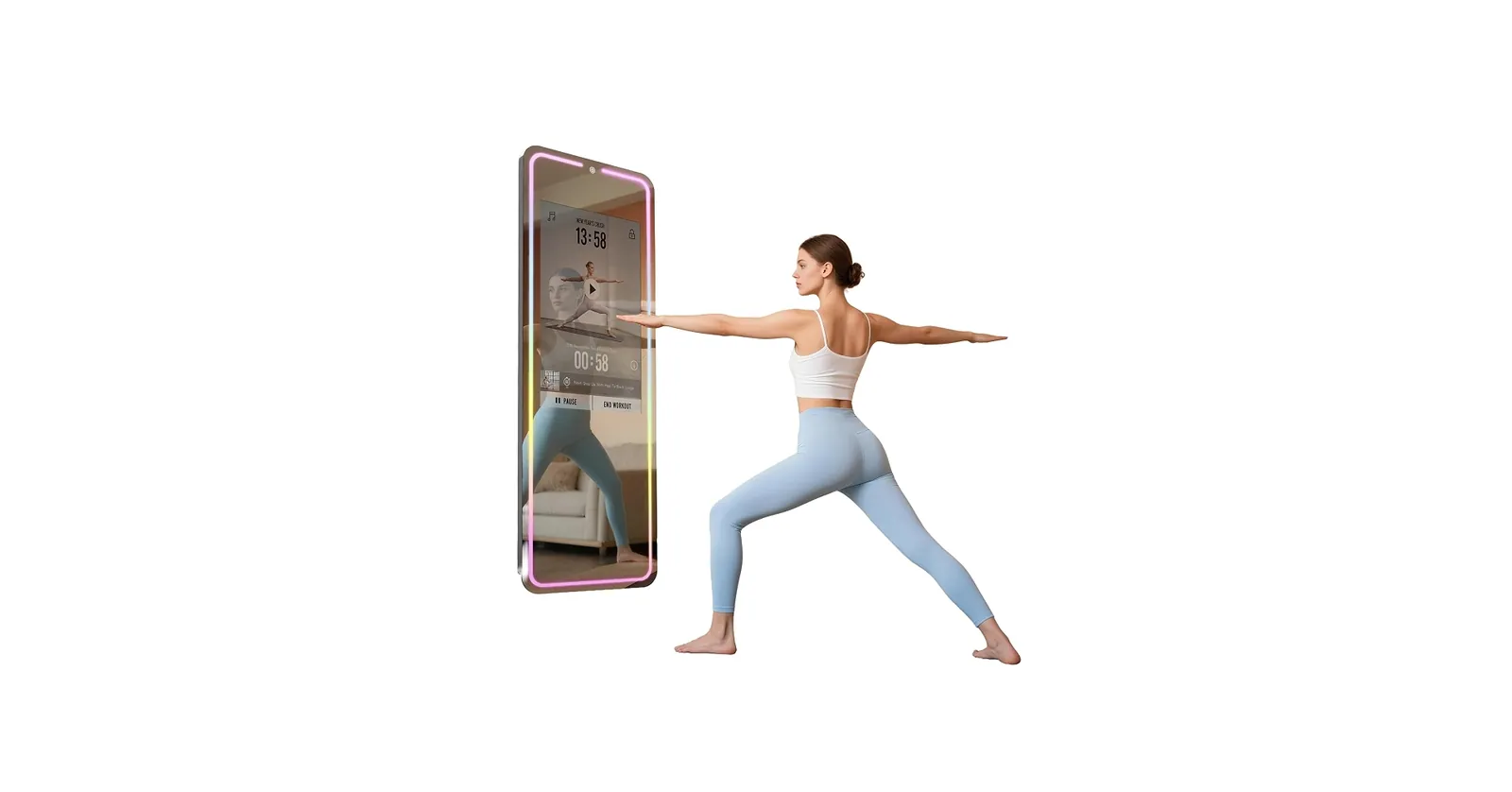
- Always perform a full power cycle by unplugging the device for at least sixty seconds before attempting complex software resets.
- Ensure your home Wi-Fi signal strength is stable, as intermittent connectivity is the primary cause of streaming lag and login errors.
- Use a soft, non-abrasive microfiber cloth to clean the glass surface to prevent touch-sensor interference from dust or smudges.
- Keep your firmware updated to the latest version to ensure compatibility with all new classes and system features.
- Contact official support channels if hardware-related indicators, like flickering lights or permanent dead pixels, remain after a factory reset.
Understanding Common Connectivity Problems
The most frequent source of frustration for users involves the device failing to reach the central server. If your display shows a connection error icon, the issue is almost certainly within your local environment rather than the mirror itself. Start by checking your router settings to ensure the device isn’t being blocked by a firewall or a strict security protocol.
| Issue Type | Potential Cause | Immediate Action |
|---|---|---|
| Network Timeout | Weak Wi-Fi signal | Move router closer or use extender |
| Login Failure | Server maintenance | Check official status page |
| App Lag | Cache buildup | Perform a full system reboot |
| Audio Desync | Bluetooth interference | Toggle external audio devices off |
Network stability is the backbone of your interactive experience. If you’re experiencing constant buffering during live classes, check if other devices on your network are consuming high bandwidth. Streaming high-definition video requires a consistent download speed, which can be disrupted by simultaneous gaming or large file downloads on other household devices.
How to Perform a Power Cycle
When the interface becomes unresponsive or the touch input registers incorrectly, a power cycle acts as a forced refresh for the internal computer. This process clears the temporary memory and re-establishes the handshake between your device and the cloud-based services.
Warning: Don’t attempt to force a power cycle by pulling the cord while the system is actively downloading a firmware update, as this can corrupt the operating system files and potentially render the unit unusable.
To execute this correctly, follow these steps:
- Locate the power cable at the back or bottom of the frame.
- Remove the plug from the wall outlet completely.
- Wait at least sixty seconds to allow all capacitors to discharge.
- Plug the unit back into a direct wall outlet, avoiding power strips if possible.
- Wait for the logo to appear and the home screen to fully load.
Troubleshooting Touchscreen Input Issues
If the glass surface isn’t registering your taps or swipes, physical interference is the first thing to investigate. Oils, sweat, or dust accumulation can disrupt the capacitive sensors embedded behind the glass. Use a dry or lightly dampened microfiber cloth to wipe the entire surface area.
If cleaning doesn’t resolve the lack of touch response, check for physical obstructions. Sometimes, a protective film or a nearby piece of exercise equipment can exert pressure on the frame, causing the sensor to misinterpret input. Ensure that no items are leaning against the edges of the frame, as this can trigger a “ghost touch” effect where the screen registers inputs that you aren’t making.
Resolving Audio and Visual Glitches
Audio and visual synchronization is critical for form-based exercises. If the audio trails behind the video, the processor might be struggling with background tasks. First, disconnect any external Bluetooth speakers or headphones. By reverting to the internal speakers, you can isolate whether the issue is with the Bluetooth handshake or the main video stream.
Pro Tip: If you notice consistent audio lag, navigate to the system settings and ensure your time zone is set correctly, as incorrect system time can occasionally cause conflicts with the video playback server.
If the display appears discolored or shows strange artifacts, check the cable connections behind the unit. While the internal ribbon cables are secured during manufacturing, vibrations from heavy exercise or improper wall mounting can occasionally cause a loose connection. If you have moved the unit recently, ensure that the frame is perfectly level and that no mounting hardware is putting undue stress on the chassis.
Managing Firmware and Software Updates
Software bugs are often addressed in periodic firmware releases. If your device is running an outdated version, you may lose access to specific features or experience incompatibility with newer classes. Most updates occur automatically during off-peak hours, but you can manually check for pending updates in the settings menu.
To maintain optimal performance, ensure your device has sufficient storage space for temporary files. While you can’t manually delete files in the way you would on a laptop, a factory reset is the “nuclear option” for clearing out corrupted software caches.
Addressing Login and Account Errors
If you’re stuck on the login screen or receive an “invalid credentials” error despite knowing your password is correct, the issue usually stems from a credential sync delay. Try logging out of the mobile app on your smartphone, then logging back in. This forces the central server to re-verify your subscription status and push the updated token to your hardware unit.
If the problem persists, check the following:
- Verify your subscription is active through your account dashboard.
- Ensure your email address is correctly typed without trailing spaces.
- Check if your internet provider is restricting access to the Lululemon domain.
- Attempt a password reset if the system continues to reject your login.
Is Your Power Source Adequate?
Many users inadvertently create issues by plugging their equipment into overloaded power strips or extension cords. These devices require a steady, consistent flow of electricity to operate their high-definition displays and internal processors. If the voltage drops due to a low-quality extension cord, the system may reboot unexpectedly or fail to maintain a Wi-Fi connection.
Always use the original power adapter that came with your unit. Using third-party adapters can lead to overheating or insufficient power delivery, which triggers internal safety shutdowns. If you suspect your power outlet is faulty, plug a lamp or another small appliance into the same socket to verify it’s providing constant power.
Frequently Asked Questions
Why is my screen frozen?
A frozen screen is typically caused by a background software process hanging or a temporary network interruption. Perform a hard power cycle by unplugging the device for one minute. If the screen remains frozen after restarting, wait for the battery to drain completely if applicable, or contact support for a system-level diagnostic check to see if the internal memory has failed.
How do I fix Wi-Fi connection errors?
Start by restarting your home router to clear any IP conflicts. Ensure your mirror is within range of your access point and that there are no thick physical walls blocking the signal. If the problem persists, try connecting to a mobile hotspot temporarily to rule out your home network as the cause of the restriction or interference.
What causes the audio to lag?
Audio lag is usually a result of Bluetooth interference or a high-latency network connection. Disable all nearby Bluetooth devices to see if the lag disappears. If the audio is still out of sync, reduce the video quality settings if available, or try a wired internet connection to ensure the data stream is reaching the device without packet loss or jitter.
Can I factory reset the device?
Yes, you can perform a factory reset through the settings menu under the “System” or “About” tab. This will wipe all local data and restore the device to its original out-of-box state. Only do this if you have tried all other troubleshooting steps, as you’ll need to re-enter your Wi-Fi credentials and account information to resume your training.
What if the touch screen is unresponsive?
Clean the screen thoroughly with a microfiber cloth to remove oils and debris that might be confusing the touch sensors. If cleaning fails, ensure no pressure is being applied to the edges of the frame by a mounting bracket or nearby object. A hard reboot often clears minor software-related touch sensor errors by re-initializing the display driver upon startup.
Conclusion
If you have exhausted all the steps above and your device still fails to function, your next step should be to gather your serial number—found on the back of the unit or in the system settings menu—and reach out directly to the official Lululemon Studio customer support team to initiate a professional diagnostic assessment or a hardware repair request.