
To fix the issue where you find your corsair fans not detected in icue, you must first ensure the USB header cable is fully seated in the internal port on your motherboard. A loose connection is the most common reason the software can’t see your hardware. If the plug is secure, restarting the Corsair service in Windows often forces the program to re-scan for connected devices and resolve the communication error immediately.
Why iCUE fails to detect Corsair fans
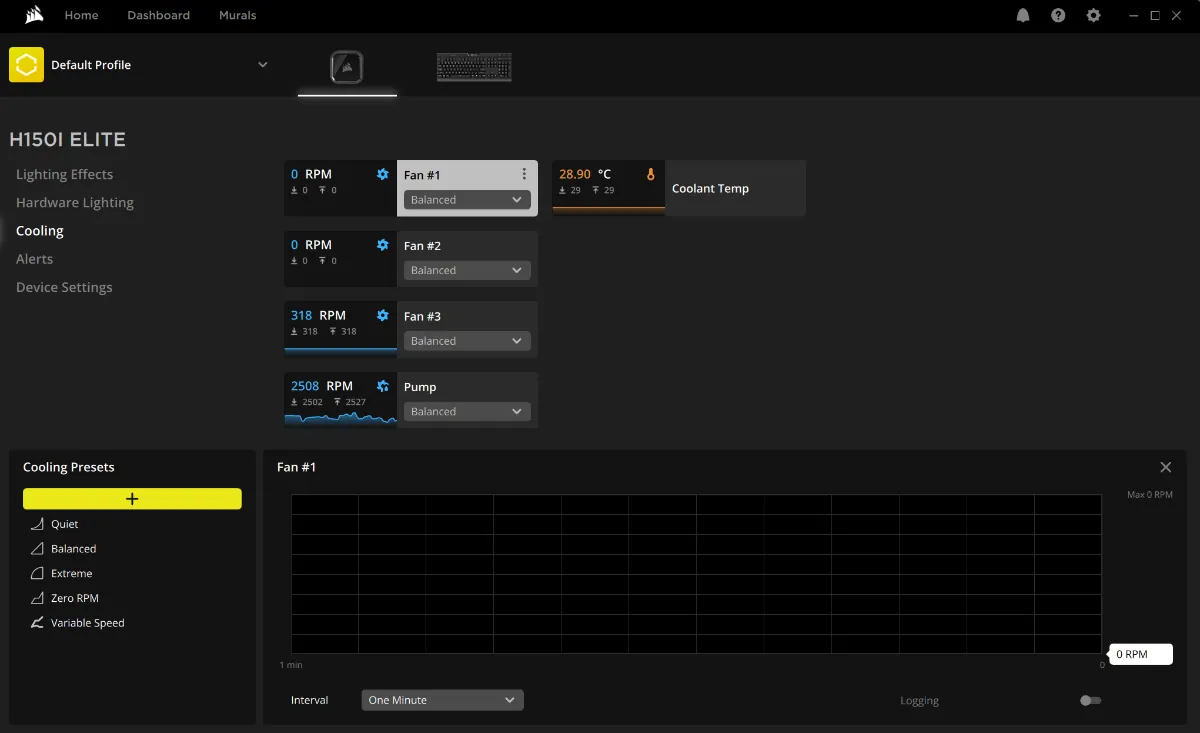
The primary reason for this detection failure is a communication breakdown between the lighting controller and the operating system. Most Corsair fans rely on an internal USB 2.0 header to send data to the software.
If the motherboard doesn’t recognize the USB device, the software has no way to address the fans or their lighting. This often happens because the header is physically loose or the internal hub lacks sufficient power. Check your Device Manager for “Unknown USB Device” alerts; if you see one, the cable is likely seated poorly or the internal controller has failed.
Another cause involves driver conflicts or incomplete installations. If you recently updated Windows or the software, a corrupted driver can stop the system from identifying the controller. The software requires specific drivers to talk to the lighting nodes.
If these are missing or blocked by security software, the hardware remains hidden. A common mistake is failing to perform a clean reinstall after a major OS update. This costs users hours of troubleshooting when a simple driver purge would have resolved the handshake error.
Finally, the order of operations during boot-up matters. Sometimes, the computer initializes USB ports after the software has finished its startup sequence. If the software launches too early, it won’t see any fans because the ports aren’t yet ready.
If you see your fans light up during the BIOS screen but they go dark once Windows loads, this is a timing issue. You can fix this by setting the software to launch with a delay in your Task Manager startup settings.
Check the physical USB connections
You should start by inspecting the physical connection between your lighting controller and the motherboard. Locate the USB cable running from your fan hub or Commander unit and trace it to the internal USB 2.0 header on your motherboard. If the connector is even slightly tilted, it may fail to maintain a steady data link. Unplug the cable, check for bent pins inside the header, and push it back in firmly until it clicks or sits flush against the board.
If you’re using an internal USB hub to connect multiple devices, disconnect it and plug the fan controller directly into the motherboard. This helps you determine if the hub is the point of failure. If the fans appear in the software after a direct connection, the hub itself is likely faulty or underpowered.
If you have multiple internal USB headers, try switching to a different port on the motherboard. Some headers share bandwidth with other features, so moving the cable to a different block can bypass a malfunctioning port. Always shut down your PC and flip the power supply switch to the “off” position before touching any internal cables to avoid a short circuit.
Refresh the service and drivers
If the hardware is physically sound, you should force the software to restart its background services. Many people try to uninstall the entire program when a simple service reset is all that’s needed. To do this, press the Windows key + R, type “services.msc,” and press Enter.
Look for the service labeled “Corsair Service” or “iCUE Service” in the list. Right-click it and select “Restart.” This action clears the current device list and forces the software to re-poll every USB port for connected hardware.
If restarting the service doesn’t work, you should perform a clean repair of the software installation. Open your Windows Settings, go to the Apps menu, and select the program. Choose the “Modify” or “Repair” option. This process checks for missing files and re-registers the drivers needed to communicate with your controllers.
This step isn’t for you if you have custom lighting profiles you want to keep, as a full repair can sometimes reset your settings. If you have complex profiles, back up your data folder before starting the repair. If the software still fails to detect the fans after a repair, the issue might lie with the firmware version on the controller itself, which may require a manual update through the settings menu.
Use the correct power cables
Power delivery is often the hidden culprit when fans spin but the lights or controls don’t work. Your fan controller requires a dedicated SATA power connection directly from your power supply. If you’re using a SATA power splitter or a molex-to-SATA adapter, the controller may not be receiving the 5V or 12V rails it needs to initialize the data chip. Always use a native SATA power cable coming straight from your power supply unit to ensure stable voltage.
If you have a high number of fans, you might be hitting the power limit of a single SATA chain. If you’re using more than six fans on one hub, move the controller to a separate SATA power cable that isn’t shared with your hard drives or other peripherals. This avoids voltage drops that occur when multiple devices pull power at the same time during a system spike.
This is a critical point for users with large cases: if you use an extension cable for your SATA power, the resistance in the wire can cause the controller to drop out of the software. Always use the shortest possible cable provided by the power supply manufacturer. If you’re still having trouble after verifying the power source, the controller unit itself might be damaged and should be tested on another computer to confirm the hardware failure.
Troubleshooting common misconceptions
Updating the BIOS is a common reflex, but it rarely resolves USB detection failures. Only proceed if your motherboard manufacturer explicitly lists a USB 2.0 initialization patch in the firmware release notes. Otherwise, you risk bricking your board for no gain.
Reinstalling Windows is an equally destructive mistake. If your device manager fails to see the controller, the operating system can’t fix a hardware-level handshake issue. You’ll lose hours of productivity only to face the same empty list.
Swapping fan positions on a hub is a waste of time. These hubs report to the system as a single composite device. If the hub itself isn’t recognized, the individual fans are irrelevant.
Finally, don’t trust just any spare cable. Use a shielded, internal-rated USB header cable under 24 inches. If you use a long, unshielded extension, signal degradation will cause intermittent drops that look like software bugs but are actually simple electrical interference.
Preventing future connectivity issues
You can stop this problem from coming back by keeping your hardware connections clean and stable. The following table shows common mistakes and how to fix them for better long-term reliability.
| If you’re doing this | Do this instead | Why |
|---|---|---|
| Using molex adapters | Use native SATA power | Molex pins often lose contact |
| Daisy-chaining USB hubs | Plug directly into motherboard | Hubs introduce signal interference |
| Letting wires hang loose | Use cable ties to secure | Tension pulls plugs out of headers |
| Ignoring firmware updates | Update firmware when prompted | New firmware fixes handshake bugs |
Check your cable tension every six months. If a cable pulls tight when you move your device, it will eventually creep out of the port. Add an extra two inches of slack to every connection to prevent this.
In this case, replace the cable immediately to ensure a stable data connection.
Frequently asked questions
How long does it take for fans to appear?
The fans should appear in the software within 5 to 10 seconds after the program finishes loading on your desktop. If you wait longer than 30 seconds and the device icon is still missing, the software has likely failed to initialize the USB handshake. In this case, you should check the USB connection on your motherboard again, as the system has clearly failed to establish a stable path to the controller.
Is it safe to unplug the USB header while the PC is on?
No, you should never unplug or plug in internal USB headers while your computer is powered on. Doing so can cause a short circuit on the motherboard’s USB controller, which may permanently damage the port or the connected device. Always shut down your system completely and flip the power supply switch to the off position before you touch any internal cables or components inside your computer case.
Why do my fans spin but show no lights?
This usually means the fans are receiving power from the fan header but the data connection to the lighting controller is broken. Check the RGB cable connection between the fan and the lighting hub specifically, as these are smaller and more fragile than the power cables. If the cable is seated correctly and the lights remain off, the LED strip within the fan itself may be faulty.
Can I use a USB 3.0 header for my fan controller?
No, you can’t plug a standard USB 2.0 fan controller cable into a USB 3.0 header without a specific adapter. The pin configurations are completely different, and attempting to force the connection will likely result in bent pins on the motherboard. If you lack enough USB 2.0 headers, you must use a powered internal USB 2.0 hub to expand your available ports safely.
What happens if I use the wrong power cable?
Using the wrong power cable, such as one from a different modular power supply brand, can cause permanent damage to your fan controller and motherboard. Every power supply manufacturer uses a unique pinout on the modular side of the cable. If you use a cable that doesn’t belong to your specific power supply model, you risk sending the wrong voltage to the controller, which will fry the internal circuits instantly.
How do I know if the controller is dead?
If your controller doesn’t appear in the Windows Devices and Printers menu after trying multiple USB headers, it’s likely dead. A lack of a connection sound when plugging into a working port confirms the internal USB bridge chip has failed. You’ll need to contact the manufacturer for a replacement unit.
Conclusion
If these quick fixes don’t bring your lighting back to life, it’s best to reach out to their support team directly. They’ll help you determine if a hardware component is faulty or if you’ve got a deeper driver conflict. You shouldn’t have to deal with dark fans for long.