
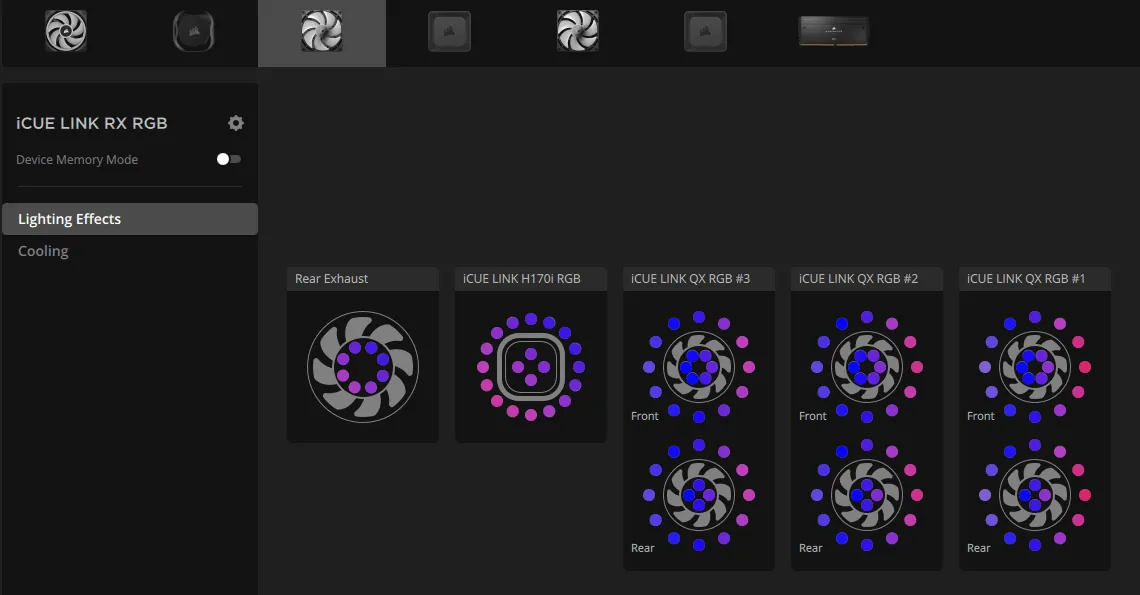
Most of the time, the issue happens because the lighting controller or the USB header connection is loose or disconnected. You’ll find that corsair fans not showing up in icue is a common problem usually solved by checking your physical wiring and ensuring the software recognizes your hardware controller. If the software can’t see the controller, it can’t see the connected fans. You should always check the official Corsair support documentation to verify if your specific fan model requires a dedicated commander or lighting node pro module to function within the dashboard.
Why your Corsair fans aren’t showing in iCUE
This table ranks the most likely causes based on how often they occur during a standard setup.
| Cause | How common | How to confirm it | Fix it yourself? |
|---|---|---|---|
| Loose USB header | Very common | Check motherboard connection | Yes |
| SATA power missing | Common | Check power cable seating | Yes |
| Unplugged fan hub | Common | Inspect controller ports | Yes |
| Outdated software | Occasional | Check version number | Yes |
| Firmware conflict | Occasional | Attempt forced update | Yes with care |
| Damaged controller | Rare | Test on another header | No |
Most users assume a hardware failure when the software fails to detect the device, but the culprit is almost always a physical connection. If your system shows a “Device Not Found” error, prioritize checking the SATA power cable first. A loose SATA connection often provides enough power to light up LEDs but lacks the voltage required for data communication.
If the cable is secure, inspect the motherboard header pins. A single bent pin in the USB 2.0 header will prevent the controller from handshaking with the OS. If you see a bent pin, use a pair of precision tweezers to nudge it back into alignment before plugging the header back in.
If you’re running multiple controllers, ensure they aren’t daisy-chained through a single low-power hub. This creates a voltage drop that causes intermittent detection failures. If your device drops out only when the system is under heavy load, you’re likely hitting a power limit. Move the device to a direct motherboard port to confirm if the hub is the bottleneck.
Loose internal USB connections
A loose internal USB header is the primary reason the software fails to detect your hardware. The controller communicates with your computer through these small 9-pin connections on the motherboard. If the plug is slightly tilted or pushed out of its socket, the data link breaks while the fan power might remain active.
To confirm this, power down your computer and open the side panel. Locate the USB cable running from your lighting controller to the motherboard. Ensure it’s seated firmly onto the internal USB header. Don’t force it, but ensure the plastic housing is flush against the pins. If you have another available USB header on your motherboard, try moving the cable to that port. This helps determine if the specific motherboard header is faulty.
If you have multiple devices connected to one header, you might be exceeding the data capacity of that port. If you use a USB internal hub, try bypassing it to plug the controller directly into the motherboard. This simple change confirms if the hub is the bottleneck. A proper connection usually takes about 5 minutes to verify. If the fans appear in the software after a reboot, the original header or the cable was the source of the trouble.
Missing SATA power supply
Even if the USB data connection is fine, your fans won’t appear if the lighting controller lacks power. These controllers typically require a SATA power cable coming directly from your power supply unit. Without this, the controller can’t initialize, and the software will show it as disconnected or missing.
Check the SATA power connection by following the cable from your power supply to the lighting node or commander unit. Ensure the connection is tight and that the cable isn’t pinched or damaged. If you’re using a modular power supply, ensure the cable is plugged into the correct port on the power supply unit itself. A common mistake is using a SATA power splitter that’s faulty or can’t handle the current draw of multiple fans.
If you have a spare SATA power cable coming from the power supply, swap the current one to see if the controller powers on. You’ll know the controller has power if you see any status LEDs on the unit itself. If the unit remains dark, it isn’t receiving power. This check takes about 10 minutes. If the hardware still doesn’t show up, the issue might be a faulty controller unit.
Firmware and software version mismatch
Sometimes the hardware is detected but the software refuses to display the fans because of an outdated version. Corsair frequently releases updates to improve compatibility with newer hardware. If your software version is several months old, it might not recognize the latest fan models or the newest lighting controller firmware.
To check this, open the software and navigate to the settings menu. Look for the version number and check for any available updates. If an update is available, install it and restart your system. You can also perform a “forced update” on the firmware of the controller if the software detects it but shows an error icon. This allows the software to rewrite the controller’s internal settings, which often clears up communication errors.
Be careful during a firmware update. Never turn off your computer or unplug the USB cable while the update is in progress. A failed update can leave the controller in an unresponsive state. If the software says the firmware is up to date, try a clean reinstall. This means uninstalling the software, restarting, and installing the latest version from the official source. This process takes about 15 minutes of your time.
Most users fail by skipping the registry cleanup after uninstalling. Leftover configuration files often prevent the new version from overwriting corrupted drivers. If your fans still remain hidden, manually delete the Corsair folder in your AppData directory before reinstalling.
If you see a red exclamation mark next to the device, the firmware is likely corrupted rather than just outdated. In this case, move the controller to a different internal USB header on your motherboard to rule out a faulty port before attempting the forced update again.
Less likely causes for fan issues
-
Fan order in settings: You may have the wrong number of fans configured in the software, which causes them to remain dark or unlisted. If your software allows you to manually define the fan count, set it to the exact number installed. A mismatch here often forces the controller to ignore the entire chain to prevent power surges.
-
Damaged LED strips: If one fan in a daisy-chained series has a broken LED, it can sometimes prevent the entire chain from being recognized. Inspect the data pins on the connectors for bending or corrosion. If you see a single flickering light, bypass that specific unit to see if the downstream fans regain power.
-
Motherboard BIOS settings: Some motherboards disable internal USB headers by default. Look for “USB Controller” or “Legacy Support” in your BIOS menu to ensure the headers are active.
-
Software conflicts: Competing hardware monitors often fight for control over the same USB bus. If you have multiple lighting programs installed, uninstall all but one to isolate the driver.
-
Hardware failure: If you have tested all headers and cables, the lighting controller itself may be dead. Contact the manufacturer for a warranty replacement.
What a typical fix demands
Fixing these issues mostly demands your time and patience rather than expensive tools. A simple screwdriver is usually the only physical tool you need to open your case and check the connections. Most of the work involves inspecting cables and ensuring they’re fully plugged in, which is a low-cost effort compared to buying new parts.
If you find that a cable is broken, you might need to order a replacement part from the manufacturer. The cost of a replacement cable is minor, similar to the price of a standard computer cable. If the controller itself is the problem, you’ll need to check your warranty status on the manufacturer’s website.
If the warranty is still active, you can get a replacement at no cost, though you may have to pay for shipping. Always verify your serial number on the physical unit before contacting support, as they will ask for it to confirm your specific model and warranty eligibility.
Frequently Asked Questions
Can I plug Corsair fans into my motherboard directly?
You can’t control the lighting of these fans if they’re plugged directly into motherboard headers. Motherboard headers only provide power and speed control for the fan motor. To use the lighting effects, you must connect the fans to a compatible lighting node or commander module that communicates with the software.
How long does it take for fans to show up after a restart?
The fans should appear in the software within 15 to 30 seconds after your operating system finishes loading. If they don’t appear within this time, the software is likely failing to initialize the USB driver for the controller. Check your USB connections and ensure the software is running with the necessary permissions in your system startup list.
Is it safe to unplug the controller while the computer is on?
It isn’t safe to disconnect or reconnect internal USB or power cables while your computer is running. You risk a short circuit that could damage your motherboard or the lighting controller itself. Always perform these checks with the power supply switched off and the power cable unplugged from the wall to ensure your hardware remains protected.
What happens if I use the wrong SATA power cable?
Using a SATA power cable from a different power supply model can lead to permanent damage to your hardware. The pinout configuration on the power supply side isn’t universal. Only use the cables that came with your specific power supply unit to avoid sending the wrong voltage to your lighting controller and burning out the internal components.
Does it matter which USB header I use?
It doesn’t matter which motherboard USB header you use, as they all provide the same data connection. However, ensure the header isn’t already being used by another device, such as an AIO cooler or a front-panel USB port. If you have limited headers, you may need a powered USB internal hub to expand your available connections without losing data stability.
Why do my fans spin but the lights stay off?
The fans stay off because the lighting controller isn’t receiving a signal from the software or lacks sufficient power. While the fan motor only needs a standard header connection to spin, the LEDs require the lighting controller to be active and properly mapped. Check that the lighting controller is visible in the device list and that you have configured the correct number of fans.
Conclusion
If you’ve tried these fixes and the software still won’t detect your hardware, don’t hesitate to reach out to the manufacturer’s support team directly. They’re often able to help you troubleshoot deeper firmware conflicts. Once everything’s synced up properly, you’ll finally be able to enjoy your custom lighting setup without any further interruptions.