
Most of the time, a corsair hs80 microphone not working is caused by a simple software setting or a loose connection that prevents the system from recognizing the device. You can usually fix this by checking if the headset is selected as the default input device in your computer settings. If the microphone remains silent, the issue often relates to privacy permissions or the iCUE software configuration. Always check your physical mute switch first, as it’s easy to bump this during normal use.
Why your Corsair microphone isn’t working
The following table ranks the most likely causes for your audio issues. You can verify most of these through your sound control panel or the software interface.
| Cause | How common | How to confirm it | Fix it yourself? |
|---|---|---|---|
| Muted in software | Very common | Check iCUE status | Yes |
| Wrong input device | Very common | Check sound settings | Yes |
| Privacy restrictions | Common | Check OS settings | Yes |
| Outdated firmware | Occasional | Check iCUE updates | Yes |
| USB port fault | Occasional | Try different port | Yes |
| Hardware damage | Rare | Inspect cable/mic | No |
Most users mistakenly assume a hardware defect when the culprit is actually a software conflict. If your microphone works in one application but fails in another, the issue is almost certainly a permissions setting rather than a broken cable. Check your operating system’s privacy dashboard to ensure the specific app has explicit permission to access your microphone hardware.
If you struggle to identify the source, test the device on a separate computer. If the audio remains silent on a second machine, the hardware is physically compromised. If it functions perfectly elsewhere, you’re dealing with a driver conflict or a corrupted configuration file on your primary system. In that case, perform a clean reinstall of the device drivers to clear out lingering registry errors.
Checking your software mute status
The most frequent reason for silence is that the microphone is muted within the Corsair iCUE software or the Windows sound panel. When the mic is muted, the LED on the microphone arm typically turns red, providing a clear visual indicator of the status. If you see this red light, the software is blocking your audio input regardless of your other system settings.
To fix this, open the iCUE application on your computer and navigate to the device settings for your headset. Ensure the microphone volume is set to an audible level and that the mute toggle is turned off. If you’re using Windows, right-click the speaker icon in your taskbar and select “Sounds” or “Sound settings” to verify that the device isn’t disabled or muted at the operating system level.
If the software shows the device is active but you still hear nothing, test the microphone in a different application, such as a voice recorder, to rule out a specific app conflict. If the device works in one app but not another, the issue may lie with that specific application’s input settings or OS-level privacy permissions. Adjusting these settings usually takes only a few minutes and requires no extra parts or tools.
Verifying system input device selection
Your computer often has multiple audio inputs, such as a webcam microphone or a built-in laptop mic, which can cause the system to ignore your headset. If your computer is set to use the wrong device, the microphone will appear to be failing even when it’s perfectly healthy. You must ensure the OS is specifically looking at your headset for audio input.
Go to your sound control panel and look for the “Input” or “Recording” tab. Your headset should appear as a selectable device, often labeled as “Corsair HS80.” If it isn’t listed or isn’t marked as the default, right-click the correct device and select “Set as Default Device.”
Most users mistakenly assume that selecting the device in their communication software is enough. However, if the operating system level setting remains on the integrated webcam mic, the system will often override individual app settings. Check the system sound settings first to ensure the OS recognizes the hardware before adjusting app-specific preferences.
If you switch the input and the audio begins working, the headset is functioning correctly. If the device isn’t listed at all, try unplugging the USB wireless receiver and plugging it into a different port on your computer. If the device works in one port but not another, the USB port or the wireless receiver’s connection may have a power or connectivity issue.
Always prioritize using a rear-facing motherboard USB port rather than a front-panel hub. Front-panel connections often fail to provide the consistent voltage required for wireless transmitters, leading to intermittent signal drops. If the device appears in the list but shows no movement in the input level meter when you speak, the issue is likely a driver conflict rather than a hardware failure.
Managing privacy and firmware settings
Windows and macOS often include privacy toggles that prevent applications from accessing your microphone hardware. If these permissions are disabled, your headset will be detected by the system, but no audio will be sent to your programs.
Navigate to your computer’s privacy settings and ensure that “Allow apps to access your microphone” is set to the “On” position. Check the specific list of permitted applications beneath this master switch; users frequently overlook individual app-level blocks that remain active even when the global setting is enabled.
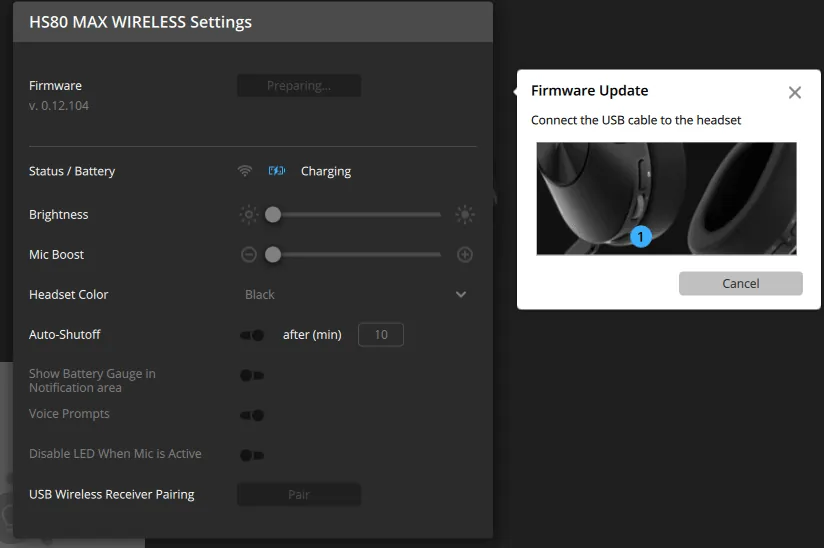
Another potential cause is outdated firmware on the headset or the wireless receiver. Corsair releases updates through the iCUE software that resolve compatibility issues with newer operating systems. If you haven’t updated your software in a while, open iCUE and check for any available firmware updates for your specific device model.
Updating these files can take up to 10 minutes and requires a stable internet connection. Never disconnect the USB cable during this process, as a power interruption can brick the receiver.
If you have verified the privacy settings and updated the firmware but still experience issues, check if the headset is in range of the wireless receiver. Obstructions like thick walls or other electronic devices can interfere with the signal, leading to intermittent audio or complete silence.
If you’re close to the receiver and the issue persists, the problem may be hardware-related. Don’t attempt to open the casing to inspect internal components. Doing so voids your warranty and rarely resolves connectivity faults caused by damaged internal antennas or failing capacitors.
Less likely causes for audio loss
Damaged microphone arms often suffer from internal wire fatigue near the swivel joint. If you hear intermittent crackling when moving the boom, the copper strands have likely frayed. This usually requires a professional repair or a warranty replacement.
USB receiver failure manifests as a flashing LED on the dongle that never turns solid. If the device remains invisible to your computer even after switching ports, the internal radio chip has likely failed. Contact the manufacturer for a specific replacement unit.
Operating system conflicts frequently arise after major updates. If your audio device shows a yellow exclamation mark in your system manager, the driver has corrupted. Uninstall the device entirely, restart your machine, and let the system fetch a fresh driver.
Battery depletion causes subtle malfunctions before total shutdown. If your headset drops the connection, it may be due to low battery levels or wireless interference. Charge it for two hours before testing again.
What a fix usually involves
Fixing this problem is mostly about software navigation and checking your physical connections. If the issue is a simple setting, it will cost you nothing but a few minutes of your time. You won’t need any special tools, just your mouse and keyboard to navigate the settings menus. When you find a setting that’s off, such as a muted toggle or a disabled input, you simply click to change it back.
If the problem is a damaged cable or a faulty wireless receiver, the cost depends on whether your product is still under warranty. You can check your purchase date and warranty status on the original receipt or your account page on the manufacturer’s website.
If the hardware is out of warranty, you may need to buy a replacement part or a new headset, which is a significant investment compared to a software fix. Always verify your warranty status before paying for repairs or replacements.
Frequently Asked Questions
Why is my microphone quiet?
Your microphone may be quiet because the input gain is set too low in your software. Check the iCUE volume slider or the Windows microphone properties to increase the level to 80-90% for standard use. If it’s still quiet, ensure the microphone is positioned close to your mouth, as the sensitivity varies based on the distance from the source.
Is it safe to update the firmware?
It’s safe to update the firmware as long as you don’t unplug the device during the process. Follow the instructions provided by the iCUE software exactly to avoid interrupting the installation. An interrupted update can leave the device unresponsive, so ensure your computer remains powered on and the headset stays connected until the software confirms the update is complete.
How long does a firmware update take?
A firmware update typically takes 5 to 10 minutes to complete. This time varies depending on your computer’s connection speed and the size of the update file. Don’t turn off your computer or disconnect the headset until the progress bar reaches 100% and the software notifies you that the device is ready to use again.
Why does the microphone work in some apps but not others?
The microphone works in some apps but not others because of individual application permissions. Check the settings menu inside the specific app that’s failing to see if it’s using the correct input device. Many apps have their own volume and device selection menus that are separate from your main system settings, so you must verify them individually.
Does it matter which USB port I use?
It matters which USB port you use because some ports provide more stable power than others. Always plug the wireless receiver directly into a high-speed port on the back of your computer tower rather than a USB hub. Hubs can sometimes cause signal dropouts, so connecting directly to the motherboard is the most reliable way to ensure the hardware functions as expected.
What happens if I reset the headset?
Resetting the headset clears any saved configuration errors that might be blocking your audio. Consult the manufacturer’s manual to find the exact reset procedure for your specific model, as this usually involves holding down a button while the device is off. This is a safe step that restores the device to its original factory settings and often fixes persistent software-based connectivity problems.
Conclusion
If these quick fixes don’t get you back to chatting, don’t worry. You should reach out to the manufacturer’s support team through their website. They’ll help you determine if there’s a deeper hardware fault. It’s a great way to ensure your gear stays in top shape for all your future gaming sessions.