
If your device is failing to show an image or connect, you can often fix babysense video monitor troubleshooting issues by resetting the pairing between the camera and the parent unit. The most common cause for these connection drops is signal interference from other wireless electronics in your home. If the units lose their link, they will show a “no signal” warning or a frozen screen, which usually clears once you re-establish the connection.
Fixing babysense video monitor connection drops
Signal interference is the primary reason why your monitor stops working correctly. Many households use a 2.4GHz frequency for Wi-Fi routers, microwaves, and cordless phones. When these devices operate near your baby monitor, they can crowd the wireless channel, causing the parent unit to lose sight of the camera. If your home has thick concrete walls or metal frames, these physical barriers also weaken the signal strength significantly.
If the monitor displays a “searching” icon while the camera light remains solid green, the issue is almost certainly wireless congestion rather than a hardware defect. Move the parent unit to a different room or change the channel settings on your router to 5GHz to clear the path.
Another frequent cause is a faulty power supply or a loose charging port. If the camera isn’t receiving a steady stream of power, it will shut down intermittently, leading to a loss of the video feed. Over time, the internal rechargeable battery in the parent unit may also degrade. If the battery can’t hold a charge, the unit will turn off without warning, making it seem like a connection error when it’s actually a power failure.
Check the port for dust or debris using a wooden toothpick. If the unit is designed to be portable but dies immediately after being unplugged, the battery may be failing and require replacement.
Finally, firmware glitches can happen if the device experiences a power surge or an incomplete software update. This is rare, but it can cause the screen to remain blank or display static. If the hardware is intact but the software is stuck, a simple power cycle of both the camera and the monitor usually forces the system to reconnect to the internal network.
Re-pair the camera and monitor
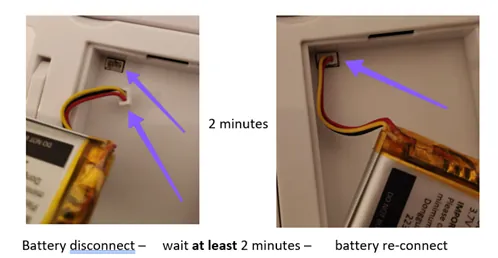
This fix is for users who see a “no signal” message or a blank screen despite the power lights being on. You’ll need to bring both units into the same room to ensure a strong signal during the process. Start by turning off both the camera and the parent unit, then unplug them from their power adapters for at least 60 seconds. This allows the internal memory to clear completely.
Plug the camera back into the wall outlet and turn it on. Then, turn on the parent unit and navigate to the menu settings. Look for the “Camera” or “Pairing” option in the menu. Select the option to add or pair a camera.
While the parent unit is searching for a signal, press and hold the physical pair button on the camera for about 3 to 5 seconds. You should see a light on the camera blink, indicating it’s looking for the parent unit.
Once the screen displays a live image, the pairing is successful. If it fails, try moving the camera closer to the monitor. If you can’t get them to pair after three attempts, there may be a hardware fault in the wireless antenna. If the device remains under warranty, you should check the official Babysense support page to see if you qualify for a replacement unit or a professional repair.
Check your power supply
This fix is for monitors that turn off randomly or refuse to hold a charge. First, inspect the charging cable for any visible frays or bent pins inside the connector. If you use a third-party USB cable, it might not provide the correct voltage required for the monitor’s charging circuit. Always use the original power adapter that came in the box, as these are designed to match the specific current needs of the device.
Test the wall outlet by plugging in a different electronic device, like a lamp, to ensure the outlet itself is working. If the outlet works but the monitor screen stays black, the issue is likely the power port on the monitor. Gently wiggle the cable while it’s plugged in; if the charging light flickers, the port is loose. This is a common point of failure for monitors that have been dropped or have had the cable pulled too hard.
If the monitor only works while plugged into the wall but dies the moment you unplug it, the internal battery has reached the end of its life. Most lithium-ion batteries in these devices last for a few years depending on usage intensity. If you find the battery is dead, you must contact the manufacturer for a replacement, as opening the casing to swap the battery yourself can be dangerous and will void your warranty.
Resolve signal interference issues
This fix is for users who experience choppy video, frequent buffering, or a signal that cuts in and out. Interference is often caused by placing the monitor too close to other high-power wireless devices. Move your Wi-Fi router, cordless phone base stations, and smart home hubs at least 5 feet away from both the camera and the parent unit. Wireless signals travel in waves, and these devices create “noise” that drowns out the baby monitor’s feed.
If you live in an apartment building, your neighbors’ Wi-Fi networks might also be causing the problem. If you have a dual-band router, try changing your home Wi-Fi channel to a different frequency to see if it improves the monitor’s stability. Additionally, avoid placing the camera behind large metal objects or mirrors, as these surfaces reflect and block the wireless signal, preventing it from reaching the parent unit.
If the signal remains weak, keep the parent unit within 30 to 50 feet of the camera while you test the connection. If the video quality improves at this shorter distance, the issue is simply the range of your home, and you’ll need to keep the units closer together. If the video remains poor even when the units are in the same room, the internal antenna on the camera may be damaged.
What not to do
Don’t attempt to open the plastic housing of the camera or monitor. This exposes you to high-voltage capacitors that hold a charge even when unplugged, and it permanently voids your warranty.
Avoid using non-branded replacement chargers. If the output voltage deviates from the original specification, the internal battery may overheat or fail, so consult a qualified technician to verify compatibility before use.
Never submerge the monitor in water to clean it. The base contains moisture-sensitive components that can be damaged or cause short circuits upon contact with liquid. Use a dry microfiber cloth instead.
If you detect a burning smell or notice the casing feels hot to the touch, stop using the device immediately. This indicates a failing circuit board or a shorted wire. Continuing to power the unit after these signs appear creates a genuine fire hazard. Unplug the device and contact support for a replacement.
How to stop it happening again
To keep your monitor running, follow a routine of careful placement and power management. Small changes in how you store the cords and where you position the camera prevent most common failures.
| If you’re doing this | Do this instead | Why |
|---|---|---|
| Wrapping cords tightly | Keep cords loose and flat | Stops internal wire breakage |
| Placing camera near Wi-Fi | Keep 5 feet of distance | Reduces signal interference |
| Cleaning with wet cloths | Use a dry microfiber cloth | Avoids moisture damage |
| Ignoring low battery icons | Charge before it dies | Keeps battery cells healthy |
Most users fail by coiling cables around the power brick, which creates sharp internal kinks that eventually sever copper strands. Always use a loose, circular loop secured with a velcro tie to maintain wire integrity.
If your monitor feels warm to the touch while idle, ensure it’s in a well-ventilated area.
If you notice intermittent video lag, check the distance to your router first. If the lag persists despite moving the unit, the issue is likely a firmware conflict rather than a hardware fault. In that case, perform a hard reset by holding the power button for ten full seconds.
Frequently asked questions
How long should the battery last on a full charge?
The battery lasts 4 to 8 hours depending on screen usage and VOX mode. High brightness and volume settings will drain the battery toward the lower end of that range. If the battery lasts less than an hour after a full charge, it has reached its end of life and requires replacement.
Why is my monitor screen showing a black image?
A black screen usually means the camera is in night vision mode or the lens is covered. Infrared LEDs provide a black-and-white image in dark rooms, while physical obstructions can block the view in light. If the image remains black, perform a full reset by unplugging both units for 60 seconds.
Is it safe to leave the monitor on all night?
Yes, you can leave the monitor on all night if cables are kept away from the baby. Mount the camera at least 3 feet from the crib to prevent cord access. Don’t leave the monitor running if you notice signs of melting or a burning smell.
What happens if I use a different power adapter?
Using an adapter with the wrong voltage or amperage can damage the internal charging circuit of your monitor. Most devices require a specific input current to charge the battery safely; if the adapter provides too much power, it can cause the unit to overheat. Always check the label on your original power block and ensure the replacement matches the exact output voltage and polarity listed on the manufacturer’s official specifications.
How do I know if the camera is broken?
The camera is likely broken if the power indicator light fails to turn on while plugged into a working outlet. Test the camera with the parent unit’s power cable to rule out a faulty cord. If the camera still shows no signs of life, the internal hardware has failed and requires professional support.
Conclusion
If these quick adjustments don’t resolve the problem, don’t hesitate to reach out to the customer support team for further guidance. They’re happy to help you get everything running smoothly again. Keeping your user manual in a handy spot will also make future check-ups much easier for you and your family.